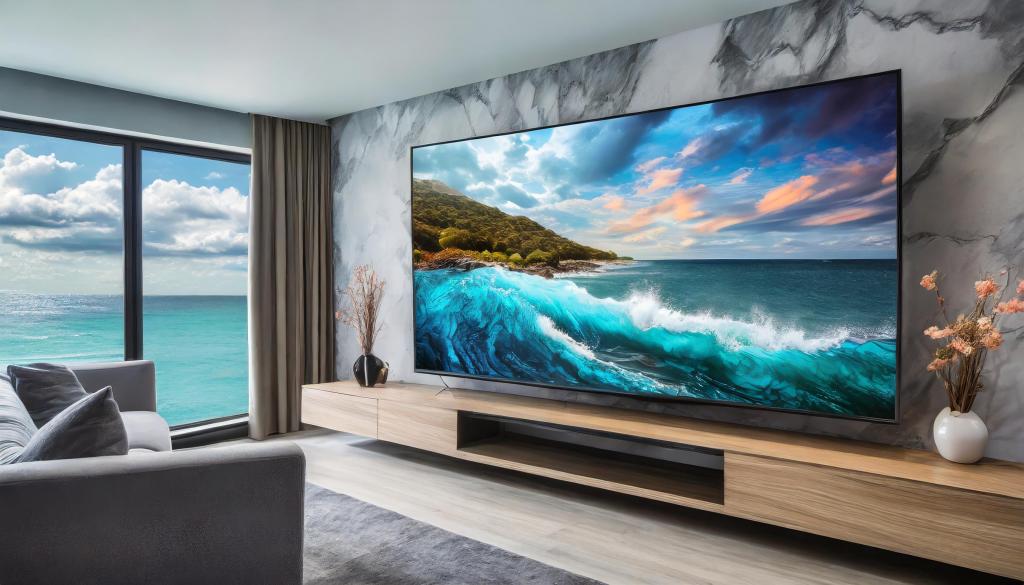
Who says art is only for the Samsung Frame TV? Your trusty non-frame smart TV can still double as a stunning art display, adding a touch of elegance and personalization to your living space.
Why Display Art on Your TV?
- Boost Aesthetics: Add a touch of sophistication and personality to your space especially during holidays or other celebrations at your home.
- Reduce Black Screen Boredom: Say goodbye to the blank void after watching your shows.
- Curate Your Own Gallery: Showcase your favorite artworks, personal photos, or even family memories.
- Explore Endless Possibilities: Choose from a vast collection of art styles and genres to suit your taste.
Methods for Displaying Art on Your TV
Streaming Services
Many smart TVs come with built-in apps like “Art Mode” or “Ambient Mode” that can display curated art collections or allow you to upload your own, but if you don’t have those particular settings on your smart TV, there are other streaming apps where you can find stream art or screen savers usually in the form of a video slideshow.
- YouTube: YouTube has plenty of free art offerings in the form of videos with no audio that you can stream on your TV. Interested in some free art videos I’ve created, check out my channel: https://www.youtube.com/@Eye4AIEtsy
Streaming Devices
In addition to streaming services, streaming devices or apps that can be added to your TV to provide other options for displaying art.
- Chromecast: Cast your Google Photos albums or downloaded art directly to your TV. Check out this how-to guide.
- Roku: Use the “PhotoView” app to display your personal photos or subscribe to art channels. Check out this how-to guide
- Fire TV: Upload art to Amazon Photos and set them as your screensaver through “Display & Sounds” settings. Check out this how-to guide
USB Flash Drive
Don’t have a streaming service or device for your TV? Check and see if you have a USB connection and manually add art. Not all TVs may have this option, and you may have to adjust your settings to display images properly.
- Save your high-resolution art images on a USB drive and plug it into your TV’s USB port.
- Select the source as “USB” and choose the desired image using your TV remote.
Where to Find Art
- Free Resources: Unsplash, Pexels, Museums’ online collections, Public Domain art collections.
- Paid Services: Etsy, Artsy, Individual artist websites.
Tips for Success
- Choose high-resolution images: Ensure crisp, clear visuals on your TV screen.
- Experiment with different formats: Mix and match photos, paintings, illustrations, and digital art.
- Adjust settings: Customize brightness, contrast, and transition effects for optimal viewing.
- Consider screen burn: Opt for screensavers with motion or dark backgrounds to prevent image burn-in.
With a little creativity and these handy tips, you can transform your non-frame TV into a breathtaking display of art, reflecting your unique style and bringing life to your living space.



 Eye4AI Art
Leave a comment